
Choose what the player keeps ready
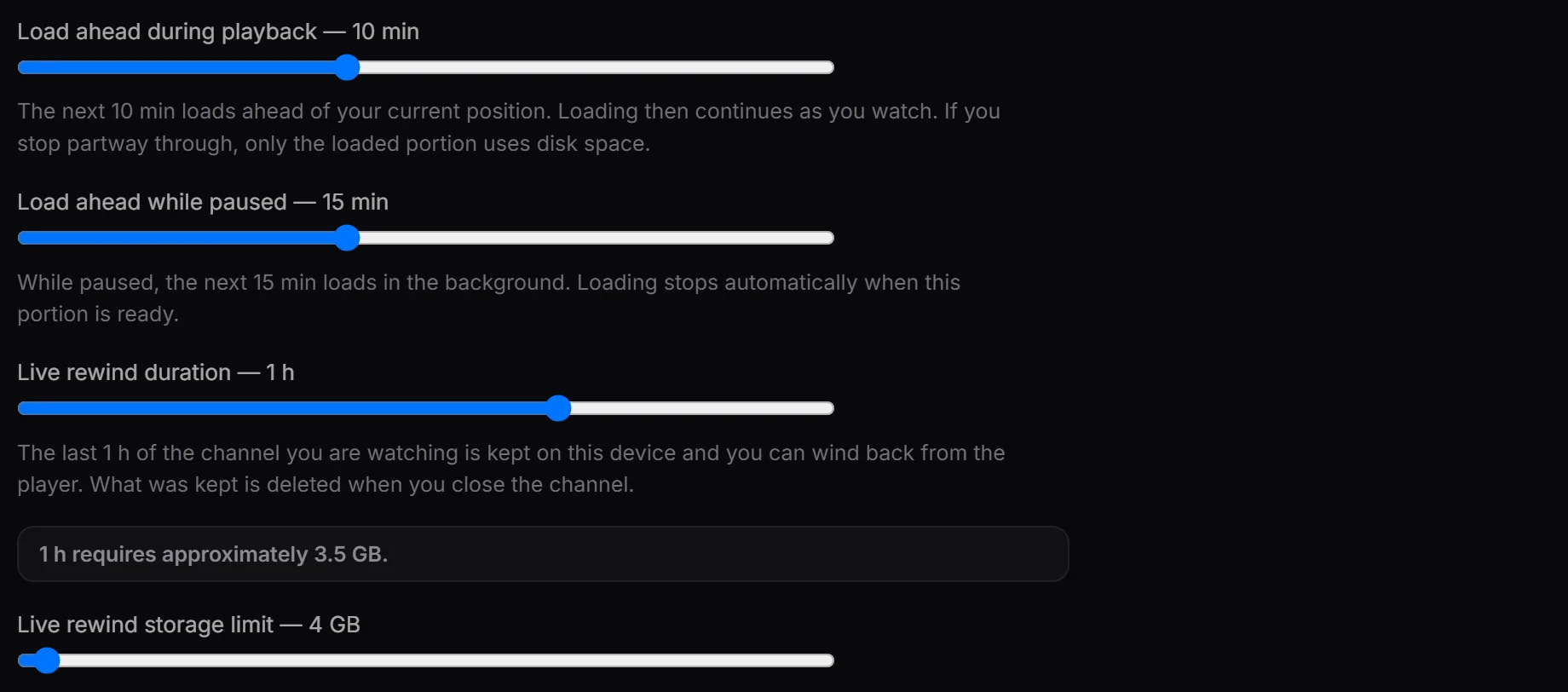
Buffer options control preloading during playback, buffering while paused and the history retained for live rewind on your Windows PC. These options serve different moments: preparing upcoming video helps playback, while retained live material lets you return to an earlier point. The settings give you control over both time and allocated storage.
Adjust time and space together
Open Settings and inspect the buffer options. Choose how far to preload while watching, how much to prepare during a pause, and the duration and disk space for live rewind. Check the storage information when changing the values, then try playback with your own source.
If you want a longer rewind history, check both its duration and storage allocation. If your computer has limited free space, account for recordings and completed downloads as well as the temporary buffer.
A duration is limited by the stream
The amount of video that fits depends on its bitrate and the space available. A higher bitrate consumes the same storage sooner, so the requested duration is not a guarantee for every channel. Buffering also needs a working stream and connection; it cannot repair unavailable provider content. A temporary buffer is separate from a completed offline download or saved recording.